How to Organize Design Files for Clients: Simple Folder Structure to Save 5+ Hours/Week
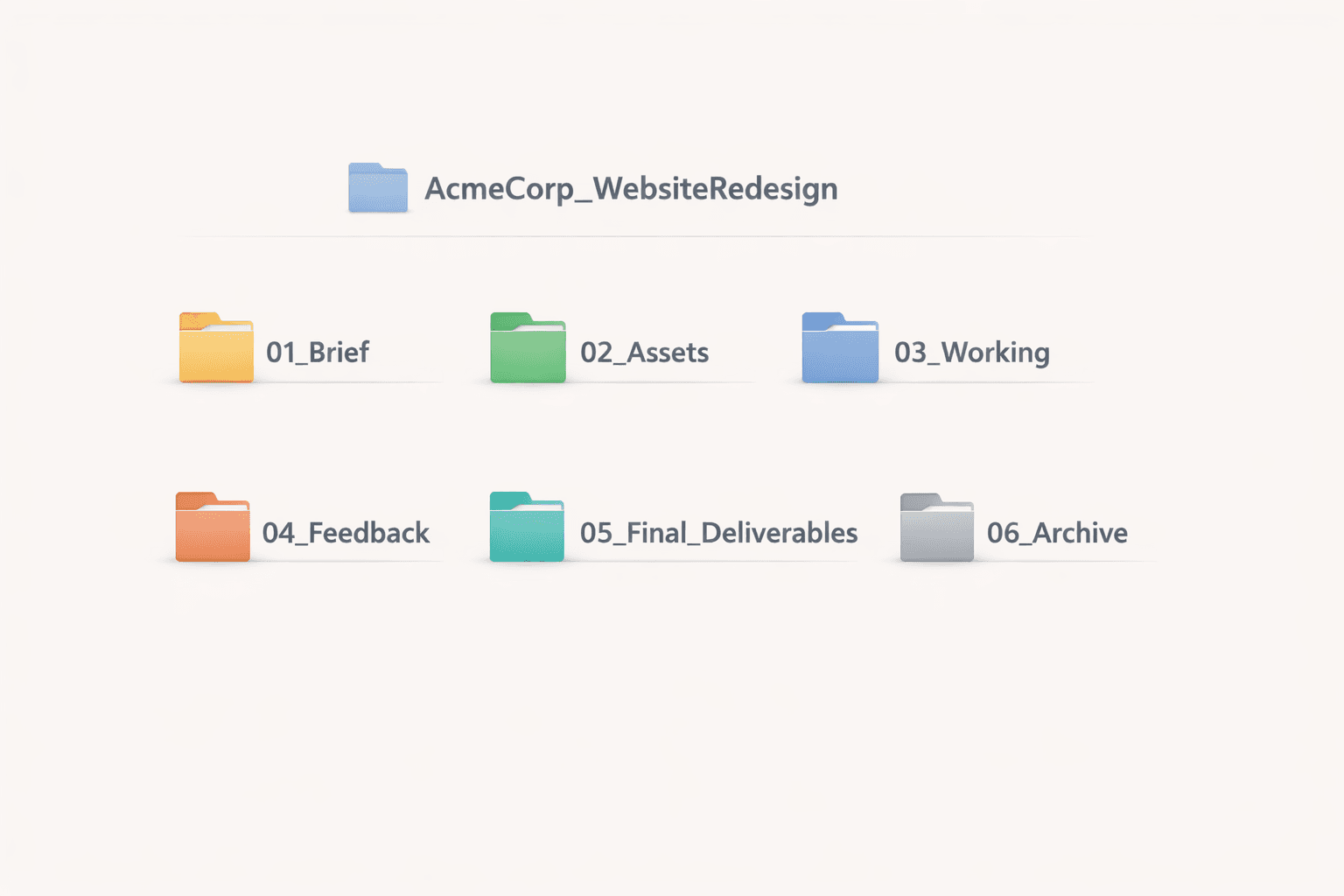
A simple folder structure can easily save a freelance designer 5+ hours every week by killing the “where did I put that file?” problem before it starts. This guide gives you a ready‑to‑copy template you can use for every client, plus a way to automate most of it later.
The hidden time leak in freelance design
Every freelancer knows this moment: you’re about to jump on a client call and spend the first 5–10 minutes hunting for “that final homepage version” across Figma, your laptop, and Google Drive. It feels small in the moment, but across 5–10 active clients this turns into hours of pure admin every month.
On top of that, messy files make you look less professional, even if your designs are great. A predictable, repeatable folder structure solves both issues at once: it saves time and increases client trust.
Why folder structure matters more than you think
A clean folder structure gives you three concrete advantages:
Speed
You stop thinking “where would I have saved this?” and start thinking “which project is this?” because every project looks the same inside.Professionalism
When a client or developer sees a neatly organized project handoff, it signals that you take their work seriously and can be trusted with bigger projects.Scalability
As soon as you work with another designer, developer, or VA, they can immediately understand the project without explanations if your structure is consistent.
The point isn’t to create a “perfect” system, but to pick one simple structure and apply it ruthlessly to every project.
The one folder template you can reuse for every client
For each project, create a root folder:
Example:
Use the same structure whether the work lives in Google Drive, Dropbox, OneDrive, or on your Mac’s Documents folder. Over time, your brain will treat this like muscle memory: you always know where to look.
What goes into each folder (with examples)
01_Brief/
This folder is for anything that explains what you’re doing and why.
Client questionnaire or discovery doc
Initial notes from kickoff calls
Screenshot/PDF of the original email brief
Scope or mini‑proposal relevant to this project
The goal is that someone new could read this folder and understand the project in 10 minutes.
02_Assets/
This folder holds everything the client or you provide as raw material.
Recommended subfolders:
fonts/– any licensed or custom font fileslogos/– vector and raster formats, primary and secondary logosphotos/– client images, stock photos, product shotsreferences/– moodboard exports, inspirational screenshots
Instead of digging through old emails for that one logo variation, you always know: “If it’s an input, it lives in Assets.”
03_Working/
This is where design actually happens.
Two simple ways to structure it:
By date
By phase
Inside, keep:
Figma files (or links in a text doc if the files themselves are in the cloud)
PSD/AI/Sketch files
Any experimental options you might later archive
This keeps “work in progress” clearly separated from reference and final outputs.
04_Feedback/
This is the folder most freelancers don’t explicitly create, and it’s where they lose a ton of time.
What belongs here:
Screenshots with client comments overlaid
PDFs you exported for review
Text docs where you paste email/WhatsApp feedback and your notes
Maybe a
raw/subfolder with unprocessed feedback and aprocessed/one with consolidated notes
The rule: if it’s client input on your work, it eventually ends up here rather than being buried forever in Slack or WhatsApp.
05_Final_Deliverables/
This folder is only for what the client actually receives as the finished product.
Examples:
Final logo pack (zipped):
Acme_LogoPack_2026.zipWeb exports:
Home_Hero_Desktop.png,Mobile_Header.svgPDF brand guidelines
You should be able to zip this folder and send it as a complete handoff without touching any other part of the project.
06_Archive/
Everything you don’t want to see every day, but don’t want to delete.
Old concept directions
Rejected iterations
Outdated exports
Move these here when they’re no longer active. It keeps your main folders lean but gives you the safety of a backup if the client suddenly says “We liked that idea from round one better.”
Naming conventions that keep this structure usable
A structure is only half the battle. Good naming makes it searchable.
You don’t have to be fancy, just consistent.
Option 1: Date‑first naming
Pros: Auto‑sorts by date, easy to see progression.
Cons: Names get longer; reading them takes some getting used to.
Option 2: Project‑phase naming
Pros: Very readable at a glance.
Cons: You may lose exact date context (but folder names can give that back).
Option 3: Simple versioning + “Final” rules
One simple rule that changes everything:
Only one file can have
Finalin the name at a time.If you create a new final, rename the old one (e.g.,
v03_final-2025).
The exact system doesn’t matter as much as never improvising. Pick one, write it down, and use it for every project.
How this can save 5+ hours/week (with quick math)
Let’s be conservative:
Say you have 5 active client projects.
You lose 10 minutes per project per week hunting for files, logos, and feedback.
That’s 50 minutes/week—nearly 1 hour—just searching.
Over a year:
~50 hours spent on “Where did I save that?” instead of designing.
That’s more than a full work week of pure admin.
A predictable structure cuts most of this. You still have to do creative work, but you stop paying the “search tax” every time you open a project.
How to implement this in 30 minutes (today)
You don’t need a big cleanup marathon. Start small.
Choose a home base
Google Drive / Dropbox / OneDrive / iCloud — pick one primary place.
Create a “Project Template” folder
For every new project
Duplicate
Client_Project_Structure.Rename it to
ClientName_ProjectName.
Pick one current project to clean up
Spend 20–30 minutes moving files into the right places.
Don’t aim for perfection; aim for “better than yesterday.”
Add a one‑liner to your onboarding
“All project files and deliverables will follow a standard structure, so you and I can always find what we need quickly.”
You’ll feel the difference on the next client call when you can open any file in seconds.
Where this manual system starts to hurt (and what Bindr automates)
This folder template is a huge upgrade—but it still has limitations:
You’re still manually moving files between folders.
Feedback is still a mix of screenshots, PDFs, and notes in the
/04_Feedbackfolder.Version names are doing the heavy lifting; there’s no true visual version history.
This is exactly the gap that tools like Bindr are built to fill:
Files are auto‑grouped by project, phase, and type, without you dragging them around.
Feedback lives on the design itself, pinned to exact coordinates, not buried in screenshots and docs.
Every file has a clear version history with timestamps and notes, so you can roll back to earlier exploration without digging in
/Archive.
If you want this kind of structure without the manual work, you can join the Bindr waitlist now and get a free month of Bindr PRO when it launches: https://bindr.cc/
Micro case study: from chaos to clean in one weekend
Imagine a typical solo designer:
8 live projects
Files split between laptop, old Dropbox, and random Figma links
Client feedback in Gmail, Slack, and Instagram DMs
They set aside one weekend to:
Choose Google Drive as the home base
Create the
Client_Project_StructuretemplateClean up the 3 most important clients into the new structure
By Monday:
They can open any current project, see
01_Briefto remember context, and jump straight into03_Workingwithout hunting.Clients stop asking for resend after resend because
05_Final_Deliverableshas everything and is always linked in their emails.
That’s not a hypothetical; it’s the kind of transformation a lot of designers describe after committing to a structure like this.
FAQ: common questions about organizing design files
How many folders do I really need per project?
For most freelancers, 6 is enough: Brief, Assets, Working, Feedback, Final Deliverables, Archive. More folders usually create friction; fewer tends to blur categories and reintroduce chaos.
Do I have to reorganize all my old projects?
No. Start with new projects and maybe 1–2 active ones. Old projects can stay as they are until you reopen them; then you migrate them into the new structure incrementally.
Where should I keep contracts and invoices?
If they’re project‑specific, put them into 01_Brief/ or create a 00_Admin/ folder at the top for contracts, SOWs, and invoices. If you have dozens of clients, a separate global “Clients/Admin” area can also work.
What if a client has multiple projects at once?
Use a root folder per client, then a project folder inside:
Each project then follows the same 01–06 structure.
How long should I keep old project files?
At least as long as your contract or local regulations require. Practically, many designers keep them for 2–3 years, but move everything non‑essential into 06_Archive/ so active projects stay clean.
If you implement this structure today, you’ll feel the time savings almost immediately—and you’ll also have a clearer picture of what a design‑first workspace like Bindr can automate for you later. If you want that automation and visual version history without the manual folder work, you can join the waitlist for a free month here.