How Do Designers Manage File Versions Without Endless “final_v3_FINAL” Chaos?
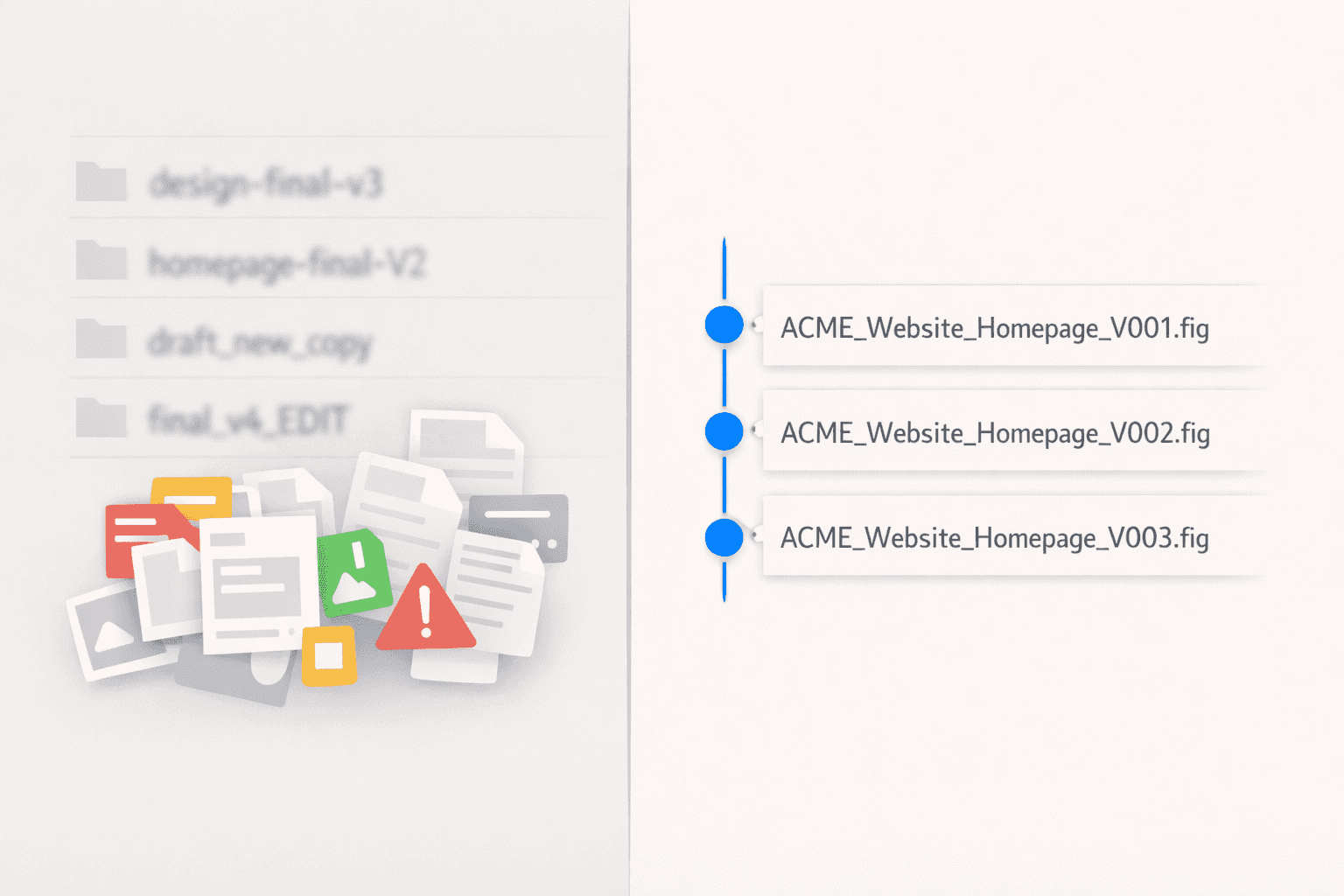
Version chaos quietly eats a lot of a designer’s time. One wrong “final” file, one lost exploration, one client asking to “go back to version 2” and you are suddenly hunting through folders instead of designing.
Here is a simple way to manage file versions without ending up with “final_v3_FINAL_reallythisone.psd” in every project.
Why version chaos is a real problem
A few patterns come up again and again in designer threads and guides:
File names grow into long jokes because nobody decided on a system.
Designers are afraid to overwrite something the client liked, so they duplicate files endlessly.
Teams are never sure which file is “the one” for developers or printers to use.
When a client says “Can we go back to version 2?”, nobody is sure which file that was.
Version control is simply how you stop these situations from turning into emergencies.
What “version control” really means for designers
You do not need to think about Git or developer tools. For design work, version control boils down to three questions:
What changed between this version and the last one?
Who changed it and when?
Which version are we actually using right now?
You can answer those questions manually with clear file names and a bit of documentation, or you can let a workspace remember it for you. The important thing is to choose a method and stick with it.
A simple naming system that kills “final_v3_FINAL”
Almost every high‑ranking guide on file naming recommends some variation of a consistent pattern.
Here is one that works well for freelance designers and small teams:
Client_Project_Item_V001.ext
Breakdown:
Client: short code, for example
ACME.Project:
Website,Brand,Dashboard.Item:
Homepage,LogoPrimary,PricingPage.V001: three‑digit version number.
Examples:
ACME_Website_Homepage_V001.figACME_Brand_LogoPrimary_V003.aiLUMI_App_Onboarding_V007.fig
Three simple rules give this pattern real power:
Do not use the word “final” in file names at all.
Only bump the version number when you finish a meaningful set of changes or send an update to a client.
Keep all versions in the same folder so they sort by name and you can quickly scroll back.
Compared to a folder full of home-new.psd, home-new-new.psd, and home-final2.psd, this already feels much calmer.
Working with other designers without wrecking the system
Versioning gets harder when more than one person touches the same work. People often start adding initials, dates and side comments into file names until nothing is clear.
You can keep collaboration tidy with a few guidelines:
Agree on one source‑of‑truth file name that never includes initials, for example
ACME_Website_Homepage_V012.fig.If someone needs to explore ideas separately, they can create a temporary working copy such as
ACME_Website_Homepage_exploration_JP.fig,
but these copies do not go to the client.Once a direction is chosen, it comes back into the main numbered file as the next version (V013, V014, and so on).
This follows the advice many teams use: let the structure stay “logical and minimal”, and keep personal working details in your process rather than in official file names.
How to experiment without flooding your folders
Design is iterative. If version control feels restrictive, designers start duplicating files everywhere because they are worried about losing promising ideas.
You can protect explorations without making a mess.
Option 1: Use an “Explorations” area
Inside each project, create an Explorations folder. When you want to try something bold, duplicate a file there and experiment as much as you like.
When an exploration becomes a serious candidate, bring it back into the main folder as the next numbered version. Everything in the top level stays clean and client‑ready; everything inside Explorations is clearly marked as rough work.
Option 2: Rely on history in your tools
Many design tools and versioning articles recommend using built‑in history instead of duplicating files.
The pattern is:
Save a named checkpoint before big changes or after each review.
Write a short note about what changed (“New hero concept with darker palette”).
If you later want to undo a direction, revert to that checkpoint instead of hunting through older files.
Whether you do this inside your design tool or in a separate workspace, the core idea is the same: you can experiment freely because there is always a safe point to return to.
A simple way to handle “Can we go back to version 2?”
There is an entire thread about this question because it comes up so often. The problem is usually not the question; it is that nobody wrote down what “version 2” actually was.
You can fix this with a small habit: keep a quick changelog.
Keep a lightweight changelog
For each major version you share with a client, note:
Version number
Date
What changed
Status (sent, reviewed, approved)
Example:
V004 – 2026‑01‑10 – New hero layout and brighter CTA – SentV005 – 2026‑01‑15 – Applied pricing feedback – Approved
You do not need anything complex. A simple note in Notion, a Google Doc, or the notes section of your tool is enough. When someone says “that earlier version we liked”, you can map their memory to a specific file instead of guessing.
A baseline version workflow you can adopt today
Put the ideas above together and you get a straightforward workflow:
Choose a clear naming pattern
Use something likeClient_Project_Item_V001.extfor everything that might leave your machine.Increment versions deliberately
Only move from V001 to V002 when you hit a milestone or send a new round to the client.Drop “final” from your vocabulary
Treat “final” as a project state, not as part of the file name.Write two or three bullets per major version
Enough to remember what changed and when.Pick one source of truth
Decide where “official” versions live (a shared drive, a project workspace, or similar). Everything outside that is a working copy.
This gives you predictability without a lot of overhead. You can still adapt details to your own taste, but the structure stays the same.
How Bindr can fit into this without extra work
Once you are using a simple naming system, a workspace can quietly handle the deeper history and context for you.
Bindr is built to do that for design projects by:
Keeping a visible timeline of versions for each file, so you can scroll back through previous states instead of digging in folders.
Letting you add short notes to versions (“Round 2 feedback applied”, “Option B for hero”) so you remember why something changed.
Storing client comments on top of each version, which makes it easier to see which feedback belongs where.
If you already follow a naming system like the one in this article, a workspace like this simply removes a lot of manual tracking in the background. If that sounds useful, you can join the Bindr waitlist and get a free month when it launches at https://bindr.cc/
Quick FAQ about design file versions
How many versions should I keep of a design?
There is no hard limit. The important part is having one clearly marked “current” version and a history that is easy to scan. Older versions do not hurt if names are consistent and sorted.
Should I use dates or version numbers in file names?
Version numbers tend to sort better and are easier to scan, while dates can live in your changelog or notes. Many teams combine them by keeping V001, V002 in the name and recording dates elsewhere.
Is built‑in history in tools like Figma enough?
For small, single‑tool projects it can be. On longer or multi‑tool projects, or when you need a clear story for clients and developers, it often helps to have a separate place where versions, notes and feedback come together.
Do I need developer‑style tools like Git for design?
In most design workflows, no. Articles on version control for designers usually suggest consistent naming, simple rules and a visual history tool, rather than full Git workflows.
With a small amount of structure and a consistent home for your files, you can stop worrying about “final_v3_FINAL” and get back to the part you actually enjoy: the design work itself.